Interactive Whiteboard: 9 Activities That Actually Engage Students
Most classrooms use the interactive whiteboard like a glorified projector. Here are nine activities that actually use the touch, the drag, and the room.
Draft My Lesson Team
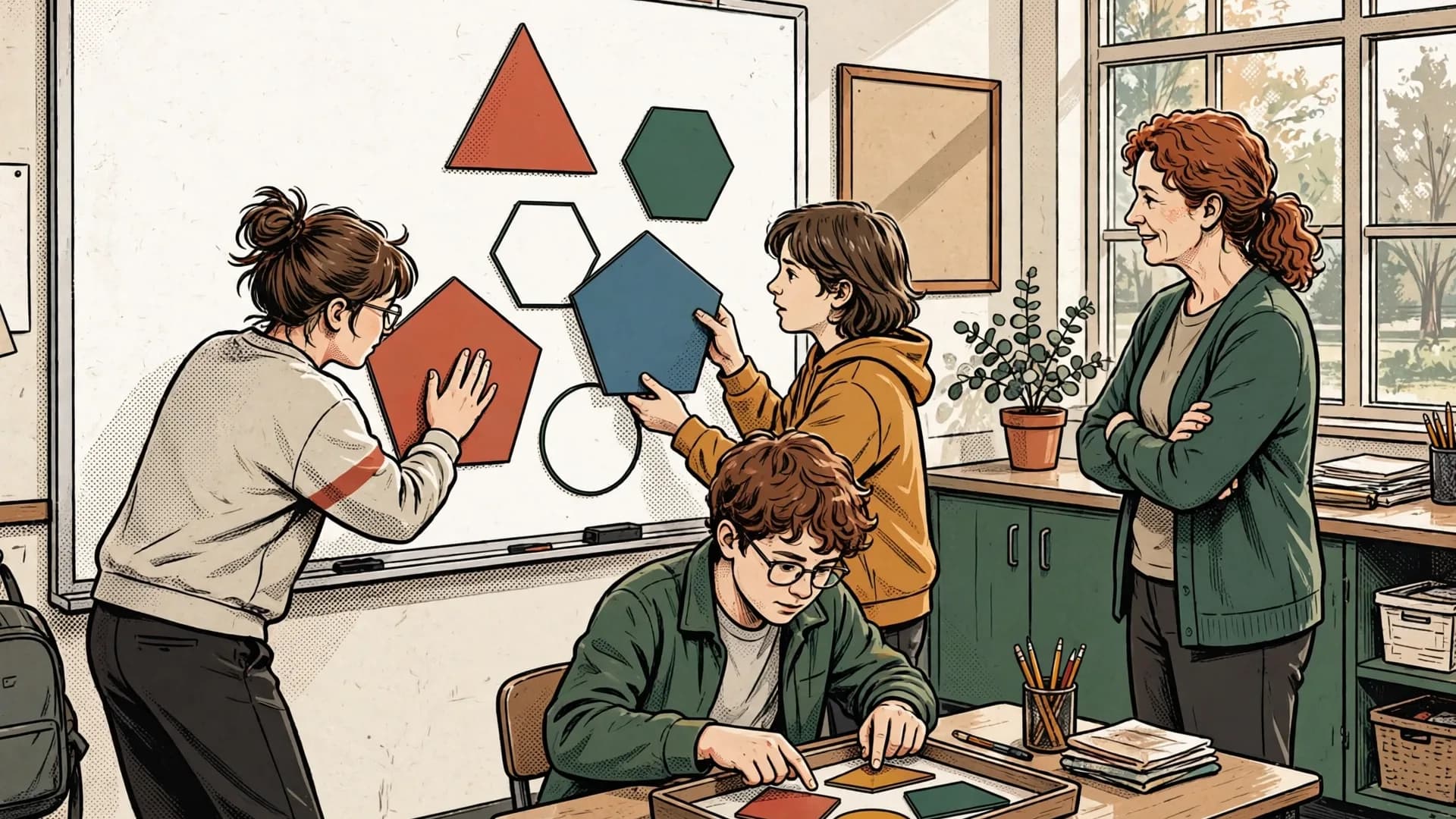
Walk into ten classrooms with smart boards and you will find nine using them as expensive projectors. The board lights up, the slides advance, the teacher talks. Students watch. The interactivity, which is the whole reason the district spent thousands of dollars per room, never happens.
That is not a teacher problem. It is a time problem, a training problem, and sometimes a genuine "I tried it once and a student broke the pen" problem. Real interactivity asks more of you than slides do. You need a plan, a few seconds of trust, and an activity that earns the chaos cost.
This article walks through nine activities that actually use the touch screen, the drag, the live input, and the bodies in the room. Each one runs in five to fifteen minutes, fits a real age range, and includes a quick note on how to keep things from melting down. If you do not have a smart board at all, the last section covers projector and phone alternatives that get you eighty percent of the way there.
Key takeaways
- Smart boards only earn their cost when students, not just the teacher, touch them and produce visible thinking the rest of the class can react to.
- A simple routine for picking who comes up (name sticks, table groups, random number) is the single biggest fix for participation.
- Most of these activities can be replicated with a basic projector and a phone, so the real upgrade is the workflow, not the hardware.
- Evidence from the Education Endowment Foundation shows digital tech adds value only when it changes how students interact, not how teachers present.
3 mistakes that turn it into a projector
Before the activity list, three patterns to notice in your own practice. None of these are crimes. They just waste the hardware.
Mistake 1: only the teacher touches it. If the only finger on the board all day is yours, you bought a touchscreen TV. The whole point is student input. If you find yourself dragging things on their behalf, stop and pass the pen, even if it costs thirty seconds.
Mistake 2: the activity could have been a worksheet. If a student walks up, circles a noun, and sits down, that is just a worksheet with extra steps. Interactive activities should produce something the rest of the class can see, react to, and build on. The board is a public space, not a private answer sheet.
Mistake 3: no rule for who comes up. Without a system, the same three confident kids will dominate, and the quiet ones will go an entire term without touching the screen. Pick a routine: name sticks, random number, table groups, anything that takes the choice out of your hands. This single fix changes everything about who participates.

9 activities that actually use interactivity
1. Drag-and-drop concept matching (5-10 min, ages 6-14)
Build a slide with two columns: terms on the left, definitions on the right, scrambled. Students take turns dragging a term to its match. Wrong matches snap back, or you simply leave them on screen and discuss why the pairing does not work.
Works for vocabulary, parts of speech, math symbols, historical figures and dates, scientific classifications. Avoid chaos by setting a "one drag, one pass" rule. The student drags, explains in one sentence, then hands the pen to whoever is next on your name stick rotation.
2. Live polling with phones or paper paddles (5 min, ages 8-18)
Pose a question on the board with four answers. Students vote using a free polling tool on their phones, or you cut four colored paper paddles per student for the no-phone version. Results show on the board in real time as bars or a wordcloud.
The trick is what you do after the vote. Do not move on. Pick the most common wrong answer and ask, "Why do you think so many of us picked that?" The poll is the hook. The discussion afterward is the lesson. Younger classes do better with paddles. Older ones with phones, but only if you have a class agreement that phones go face-down between questions.
3. Collaborative timeline (10-15 min, ages 9-16)
Draw a horizontal line across the board with a start and end date. Hand out events on slips of paper, one per pair of students. Each pair comes up, places their event on the line, and gives a one-sentence justification.
Once everything is on the board, ask the room: "What do you notice? What surprised you? Are any of these in the wrong place?" Students will start moving each other's events. That is not a bug. That is the lesson. Works beautifully for history, the life cycle of a frog, the steps in a recipe, the plot of a novel.
4. Co-built concept map (10-15 min, ages 10-18)
Start with a single word in the center of the board. The topic of today's class. Each student adds one node with a connecting line, labeled with the type of relationship: causes, depends on, is an example of, opposes. Five minutes in, the board looks like a mess. Good. The mess is data.
Now ask three students to come up and reorganize the map into clusters. The class watches them argue. You step back. By the end, you have a class-built knowledge structure that you can photograph and post in the room or your LMS. Decide in advance what the map will show you, then use the types of assessment guide to choose a useful follow-up check.
5. Agree / disagree binary voting (5-10 min, ages 7-18)
Display a statement on the board. Something deliberately arguable. "All living things need oxygen." "The narrator is reliable." "Multiplication is just fast addition." Students physically walk to the left side of the room for disagree, the right side for agree, the middle for unsure.
Then call on one student from each side to defend the position. Allow students to switch sides if convinced. The board itself just shows the statement, but the activity is fundamentally about using the screen as a public anchor for a moving discussion. Avoid chaos by giving a clear "freeze" signal before each new statement.
6. Collective text correction on screen (10 min, ages 8-16)
Project a paragraph onto the board with seeded errors. Spelling, grammar, factual, structural, your choice. Students come up one at a time, circle one error with the digital pen, and correct it. Each correction must be explained out loud.
The key constraint: only one error per student. This forces the quiet ones to find something the confident ones missed. For language classes, you can also run this with a perfectly correct paragraph and tell students "find anything you would write differently." The shift from error-hunting to style-noticing is a quiet upgrade that older students respond to.
7. Step-by-step problem solving with student volunteers (10-15 min, ages 9-18)
Put a multi-step problem on the board. Math, a science calculation, a logic puzzle, a writing prompt with a structural challenge. Each step gets a different student volunteer. Student one writes step one, explains, sits down. Student two does step two. And so on.
If a step is wrong, do not correct it. Ask the room. "Does anyone want to challenge step three?" The student who challenges then comes up and rewrites it. This is slower than working it yourself, by a factor of three. It is also where actual understanding lives. Save it for the problems that matter, not every example.
"The technology in the classroom matters less than what it lets students do with each other. Engagement comes from participation structures, not screens."
Attributed to Dr. Andreas Schleicher, Director for Education and Skills, OECD.
8. Matching games with rotation (10 min, ages 6-12)
Two grids of cards face down on the board. Students take turns flipping two at a time, looking for a match. Vocabulary and image, equation and answer, country and capital, character and quote. Wrong pairs flip back, matched pairs stay revealed.
To avoid the same students always being picked, run it as table groups. Each table has thirty seconds to confer, then sends one representative to flip. Younger classes get noisy fast with this one. Set a "table whisper" volume rule before you start, and pause the game once if it gets broken. They will self-regulate after that.
9. Exit ticket as a word cloud (5 min, ages 8-18)
In the last five minutes, ask one question on the board. "One word that captures today's lesson." "What is still confusing?" "What surprised you?" Students submit on their phones, or write on a sticky and hand it to a runner who types it in.
The board fills up with a word cloud in real time. The most-mentioned words grow biggest. You read the room in thirty seconds. Use it to plan tomorrow's opener. The activity itself is short, but it produces the highest-leverage data of the lesson because it tells you what actually landed.
No smart board: alternatives with projector + phone
Not every classroom has a smart board, and not every smart board works. Half of these activities run perfectly well with a projector, your laptop, and your phone or tablet as a remote.
For drag-and-drop matching, project a slide and have students walk up and physically point. You make the move on the laptop based on their direction. Slower, but the cognitive work is identical. For polling, free web tools project a live question on screen, students answer on phones, and you do not need any board hardware at all. Just a projector and one device. Practical lesson ideas built around this leaner setup are easy to find on the teacher-shared library at Tes.
Plan the board activity before you open the software
| Planning question | Example answer |
|---|---|
| What must students think about? | Which evidence supports each claim? |
| What will students do on the board? | Drag three evidence cards under the strongest claim |
| What will everyone else do? | Record a choice and one reason before the board move |
| How will you sample understanding? | Compare the room's answers, then ask one student to challenge the placement |
| What is the no-tech fallback? | Print the same cards and sort them on desks |
The board earns its place when it makes thinking visible to the room. If only one student is touching the screen while everyone else waits, shorten the turn, require every student to commit to an answer first, or use the paper fallback.
The collaborative timeline becomes a paper one taped to the wall. The concept map runs on a regular whiteboard with markers, and you photograph it at the end. Agree or disagree does not need a screen at all, just a clear statement and room to walk. Text correction works on a projected document with you typing in the corrections as students dictate.
The activities that genuinely require a touchscreen are the ones with rapid manipulation by many students, like the matching games and live drag-and-drop. Everything else is a workflow choice, not a hardware requirement. If your room has a basic projector and you have a smartphone in your pocket, you have eighty percent of what an interactive whiteboard offers.
This matters for equity. The most engaging classroom you have ever seen probably did not have the most expensive equipment. The teacher had a system, a routine, and a willingness to hand over the marker.

Tools don't teach, you do
A smart board is a tool. So is a chalkboard, and they have one critical thing in common: neither of them plans your lesson, reads your room, or decides which student needs to come up next. You do all of that.
The activities above do not work because of the screen. They work because they redistribute who talks, who decides, and who gets to be wrong in public without consequence. The board is just the place where that happens to be visible. If your room culture supports those things, any of these activities will work on a sheet of butcher paper. If your room culture does not yet, the most expensive board on the market will not save you.
Start with one activity from this list. Run it next week. Notice which students participate who normally do not. Notice what you have to do differently to keep your timing. That feedback is more valuable than any training on the hardware.
The goal is not to use the smart board more. The goal is to use the room more. The board is just a useful prop in service of that.
Put the activity, whole-class response, evidence check, and fallback into a copyable lesson plan template before building the slides.
Related articles
Using AI in Education: A Practical Guide for Teachers
AI in education is not about robots replacing teachers. It is about giving teachers superpowers. Here is a practical, no-hype guide to using AI in your classroom.
Read articleLow-Tech Classroom: 12 No-Screen Resources That Engage Students
Twelve no screen activities that wake up tired classrooms, from talking circles to paper escape rooms. Practical, low-prep, and built for K-12 teachers who want balance, not luddism.
Read articleEmotional Intelligence in the Classroom: Activities by Age
Concrete activities to teach emotional intelligence in your classroom, sorted by age band. Short, repeatable, and designed to fit a real teaching week.
Read articleEmergency Sub Plans: A Complete Low-Prep Day for Grade 4
Use a complete Grade 4 emergency sub plan with a full-day schedule, original reading and math pages, answer keys, no-internet backups, and handover notes.
Read article